
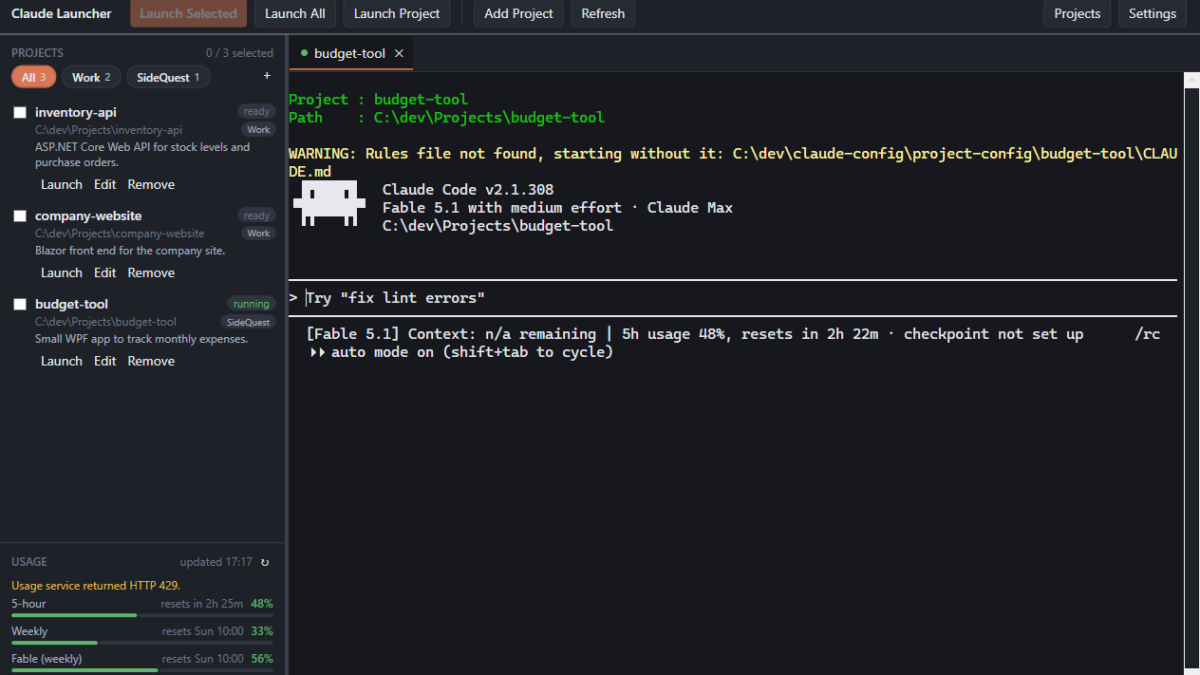
This article is a little different from the usual FreeCodeSpot tutorial. Instead of building something step by step, I am releasing the first application from FreeCodeSpot: Claude Launcher, a free Windows desktop app that runs all of your Claude Code projects from one window. In this article, I will explain what it does, why I built it, and how to download it and use it. There is no code to copy this time. You download one file and run it.
Table of Contents
What Is Claude Launcher
Claude Launcher is a small Windows app for people who use Claude Code in more than one project. It lists your projects in a sidebar, and when you click Launch, it opens a terminal tab inside the same window, already in the project folder, with Claude Code running. You switch between projects by clicking tabs, the same way you switch between files in an editor.
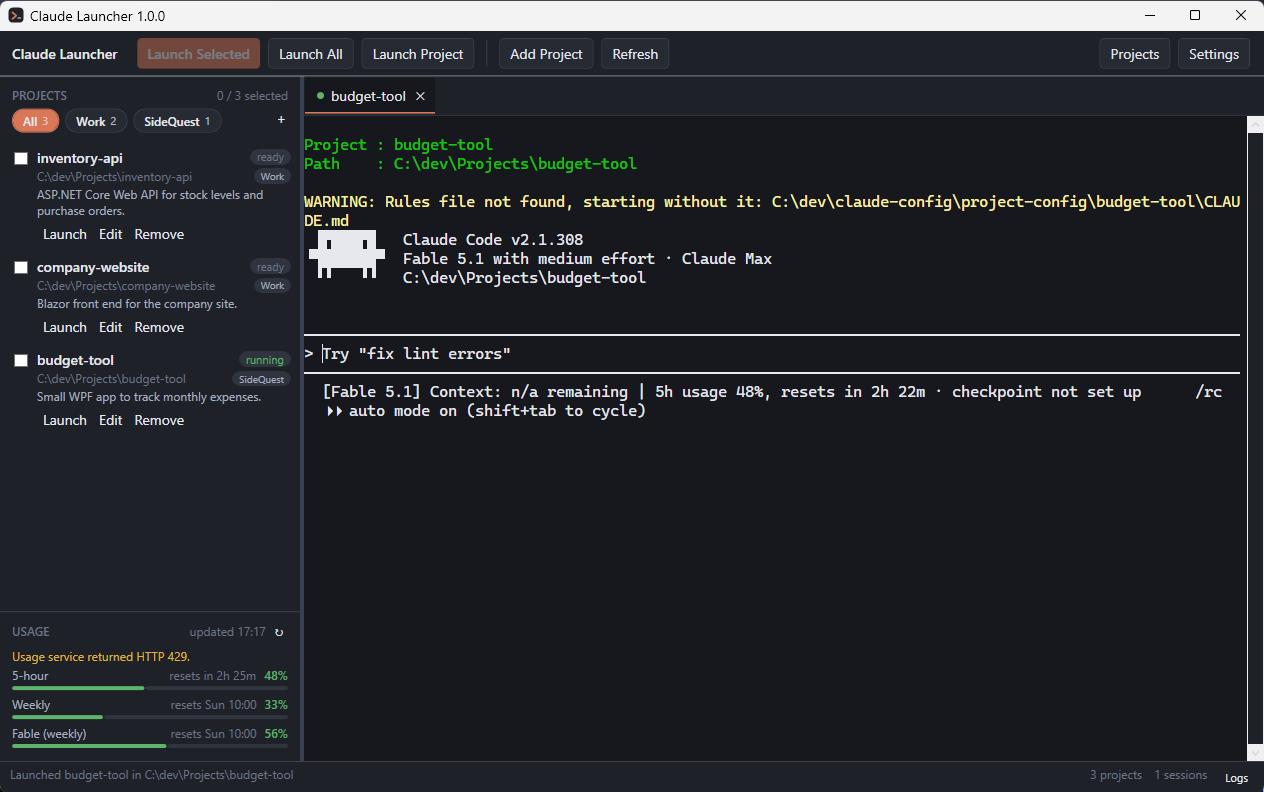
It does not replace Claude Code. Claude Code still does the work, exactly as it does in a normal terminal. The launcher takes care of everything around it. It finds the folder, starts the right shell, passes the rules and notes of that project, and keeps all the sessions in one place.
Now let's see what it can do.
Why I Built It
Claude Code works one folder at a time. That is fine for one project. With five projects it gets tiring. Every time I wanted to work on something, I had to open a terminal, remember the path, change into the folder, and type the start command with the right arguments. After a while I had six console windows open and no idea which one was which.
I started with a batch file that showed a menu of projects. That helped, but every project still ended up in its own console window, and when one of them crashed, the conversation was gone. Claude Launcher is the next step of that batch file. The script that starts Claude Code is still the same one. The launcher only gives it a window, tabs, and a few things a batch file cannot do.
Key Features
Everything in this list is in the current version, 1.0.0.
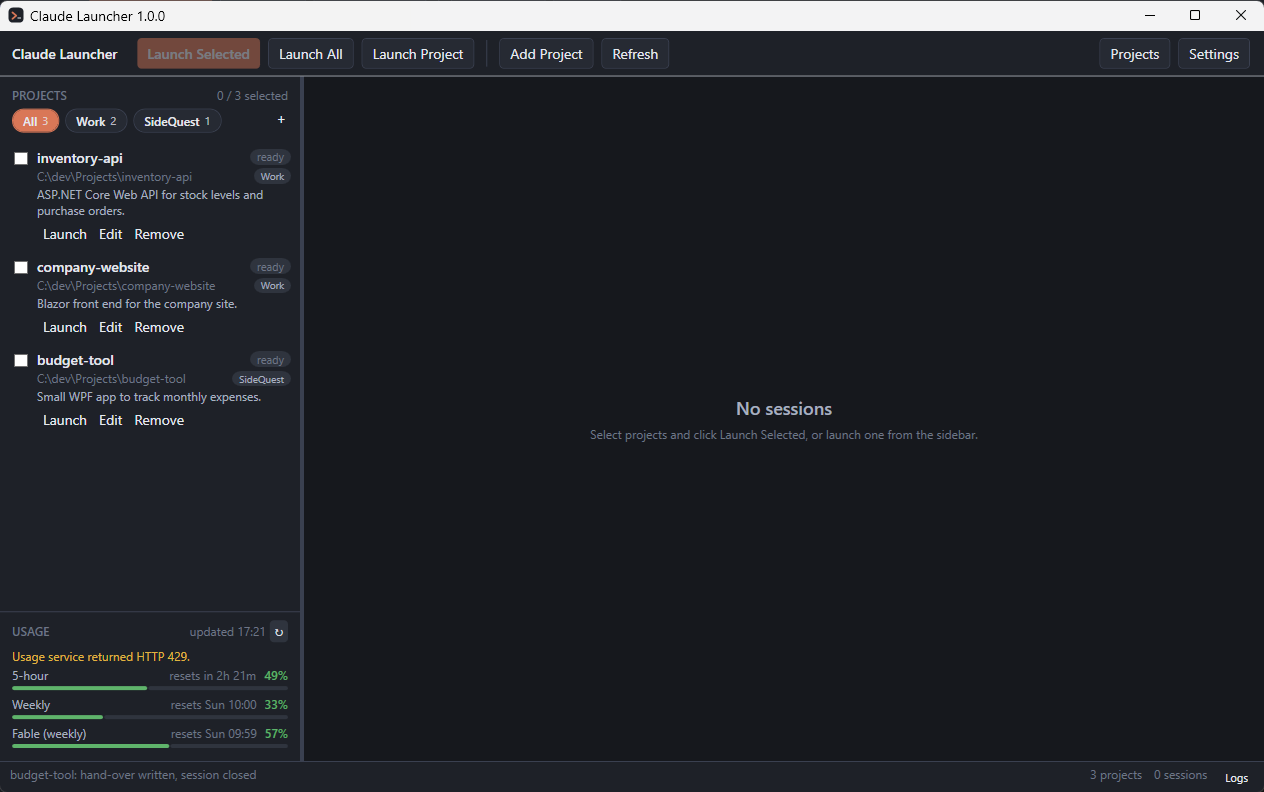
- All projects in one place. The sidebar shows every registered project with its name, folder, description and status (ready, running or missing).
- One tab per project. Each running project is a terminal tab inside the launcher. Click Launch on a row, or tick several projects and click Launch Selected, or click Launch All.
- Workspaces. Projects can be grouped, for example into Work and SideQuest. A row of chips at the top of the sidebar filters the list, and Launch All becomes Launch All in Work.
- The right context every time. Each project can have a rules file, a session hand-over file and a knowledge folder. The launcher passes them to Claude Code on every start, so a project always opens with the same instructions.
- Session hand-over on close. When you close a tab while Claude is still running, the launcher first asks Claude to write its hand-over notes, then closes the tab. The next session starts from those notes.
- Crash recovery. If the launcher ends unexpectedly, the next launch of that project resumes the conversation that was open, with
claude --resume. - Usage panel. The bottom of the sidebar shows the 5-hour and weekly limits of your Claude account and when they reset.
- Skills and agents viewer. The Settings page lists every skill and agent Claude Code can use from your config folder, your user profile and your projects.
- Portable. One
ClaudeLauncher.exe, no .NET installation needed. Copy it anywhere and run it.
Who It Is For
Claude Launcher is for developers on Windows who already use Claude Code and work across several codebases. If you only ever run Claude Code in one folder, you do not need it. If you keep three or more projects going, and you keep losing track of which terminal belongs to which project, it will save you a few minutes every day and some confusion.
Before We Start
Before we start, make sure you have the following:
- Windows 10 version 1809 or later, 64-bit. I used Windows 11 for everything in this article.
- Claude Code installed, with the
claudecommand on your PATH. Runclaude --versionin a terminal to check. - Windows PowerShell 5.1, which is included in Windows. PowerShell 7 also works.
You do not need the .NET SDK or the .NET runtime. The portable exe includes everything it needs.
Step 1 – Download Claude Launcher
The release builds are on GitHub. Open the releases page and download ClaudeLauncher.exe from the latest release.
The release has three files:
| File | What it is |
|---|---|
ClaudeLauncher.exe | The portable application. This is the one to download. |
ClaudeLauncher-v1.0.0-win-x64.zip | The same exe plus the MIT license, zipped. |
SHA256SUMS.txt | The checksums of both files. |
The exe is about 70 MB because the .NET runtime and the terminal control are packed inside it.
If you want to check the download, run this in a terminal from the folder where you saved the file, and compare the result with the line in SHA256SUMS.txt:
certutil -hashfile ClaudeLauncher.exe SHA256Step 2 – Run It for the First Time
Put ClaudeLauncher.exe anywhere you like and double-click it. The exe is not code-signed, so the first time Windows SmartScreen may show Windows protected your PC. Click More info, then Run anyway. You only see this once.
The first start takes a few seconds longer than the others, because the runtime inside the exe is unpacked to a temp folder. After that it starts normally.
The config folder
Claude Launcher keeps its project list and the start script in a folder called claude-config. On start, it looks for one next to the exe, or in one of the parent folders. If it finds nothing, it shows a Set up the Claude config folder page with two choices:
- Use an existing folder, if you already have a
claude-configfolder from the batch launcher. - Generate a new folder. You pick a workspace folder, and the launcher creates a complete
claude-configinside it, with the shared rules file, the start script, two skills, and an empty project list.
For a first install, pick Generate a new folder and choose the folder where your projects live. The layout the launcher expects is simple:
C:\dev\
├── claude-config\      projects.json, Launch-Claude.ps1, CLAUDE.md, .claude\, project-config\, context\, knowledge\
└── Projects\           your project folders
Your projects do not have to be under Projects\. Any folder works, including other drives. The default layout only means the folder picker starts in the right place.
You can come back to this page later from Settings with the Set up or generate a config folder… button.
Once the config folder is set, you should see the main window:
Step 3 – Add a Project
Now let's add a project. Click Add Project on the toolbar. A folder picker opens. Pick the project folder, and the Projects page opens with the folder name filled in as the project name.
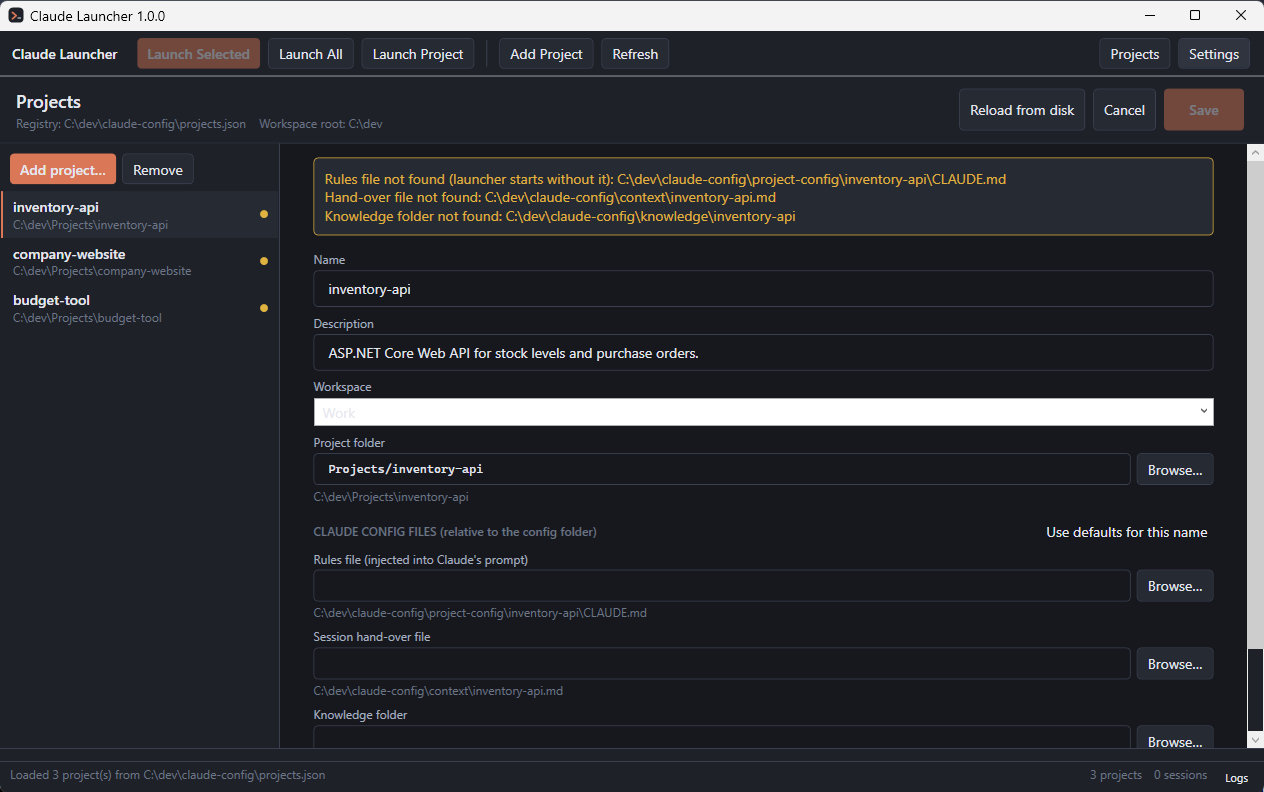
Type a short Description if you want one. It shows in the sidebar and is the quickest way to tell similar projects apart. Pick a Workspace from the drop-down or type a new name. Then click Save. The project appears in the sidebar at once.
The three Claude files (rules file, session hand-over file, knowledge folder) are not created at this point. The launcher starts the project without them, and the tab shows a warning line that says so. To create them, launch the project and ask Claude to set up project <name>. The setup-project skill that ships in the config folder creates them from the shared templates.
Step 4 – Launch a Project
Click Launch on a row. A new tab opens on the right with PowerShell in the project folder, and Claude Code starts in it. The first lines in the tab show the project name and path, so you always know where you are.
Inside the tab you work exactly as in a console window. The first time Claude Code opens a folder it asks whether you trust it, like it does anywhere else. Answer in the tab.
A few things to know about the tabs:
| Action | How |
|---|---|
| Switch tab | Click it, or Ctrl+Tab and Ctrl+Shift+Tab |
| Close tab | Its ✕, or Ctrl+Shift+W |
| Copy from the terminal | Select with the mouse, then Ctrl+Shift+C or Ctrl+Insert |
| Paste into the terminal | Ctrl+V |
| Reload the project list | Refresh or F5 |
Plain Ctrl+C is sent to the shell, so it interrupts the running command the way it does in a normal terminal. Copy is Ctrl+Shift+C.
If you launch a project that is already running, the launcher focuses the existing tab instead of opening a second one. You can change that in Settings if you want two sessions of the same project.
When Claude Code ends but the shell is still open, the tab turns yellow and reads (shell). PowerShell is still in the project folder, so you can run git status or anything else there. The ↻ button on the tab restarts Claude Code.
Step 5 – Group Projects into Workspaces
If you have projects for work and projects for yourself, group them. The chips at the top of the sidebar show All plus one chip per workspace with its project count.
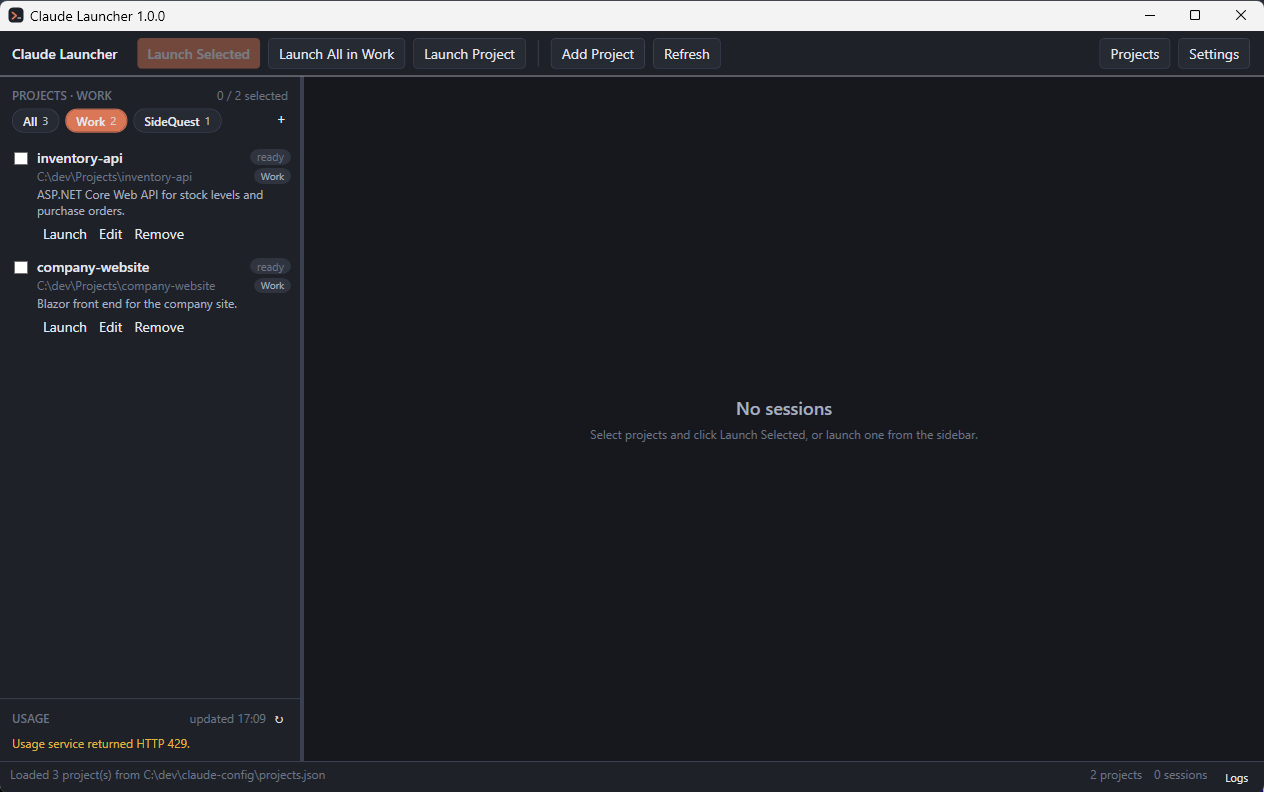
Click a chip to show only that workspace. Click + to create a new workspace. Right-click a chip to rename or remove it. Removing a workspace keeps its projects registered; they only lose the assignment.
To move a project, right-click its row and choose Move to workspace. The submenu lists every workspace, plus (No workspace) and New workspace…. Only the workspace of that entry changes. Its folder, rules and notes stay as they were.
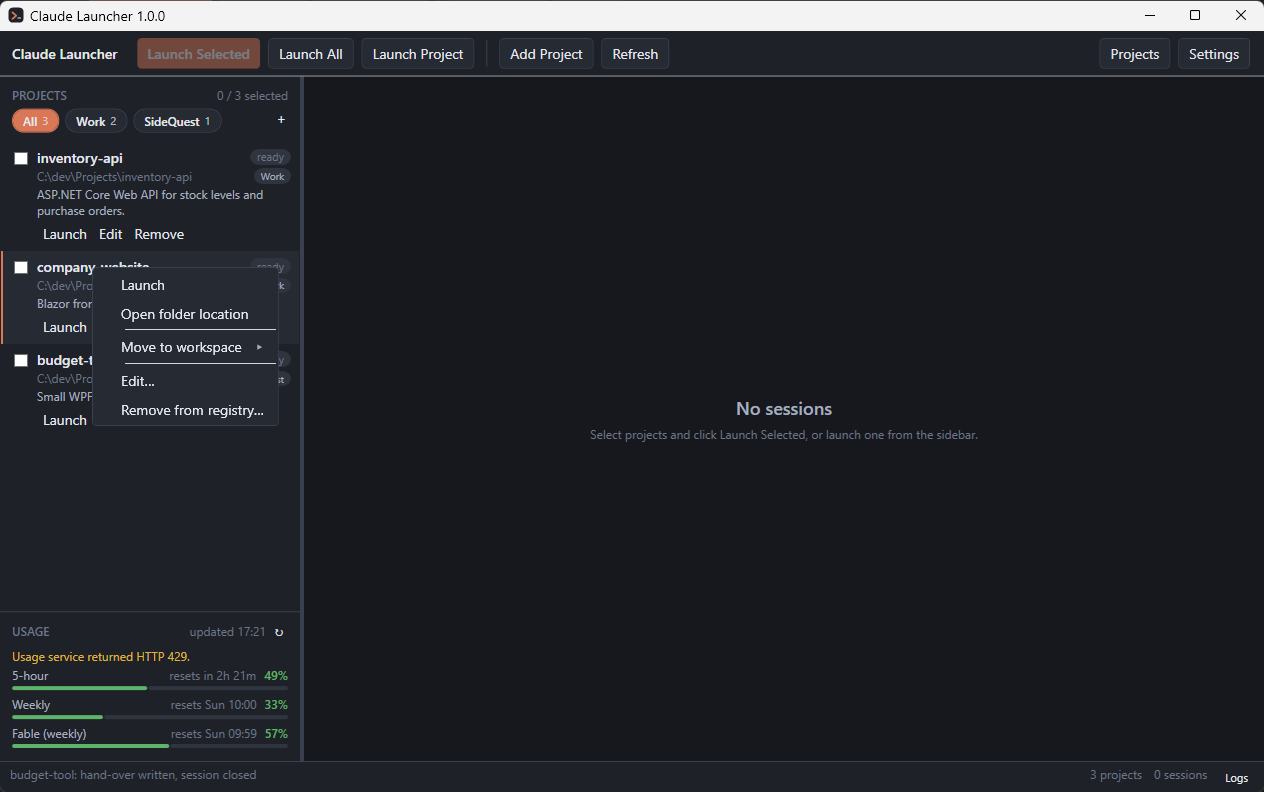
The launcher remembers the chip you chose, so the next start opens with the same workspace.
Step 6 – Close a Tab and Let Claude Write the Hand-Over
This is the feature I use the most. When you close a tab while Claude Code is still running, the launcher asks for confirmation and then types a request into that session, asking Claude to write its hand-over notes. Those notes are an update to the project's context file and knowledge folder, so the next session knows where this one stopped.
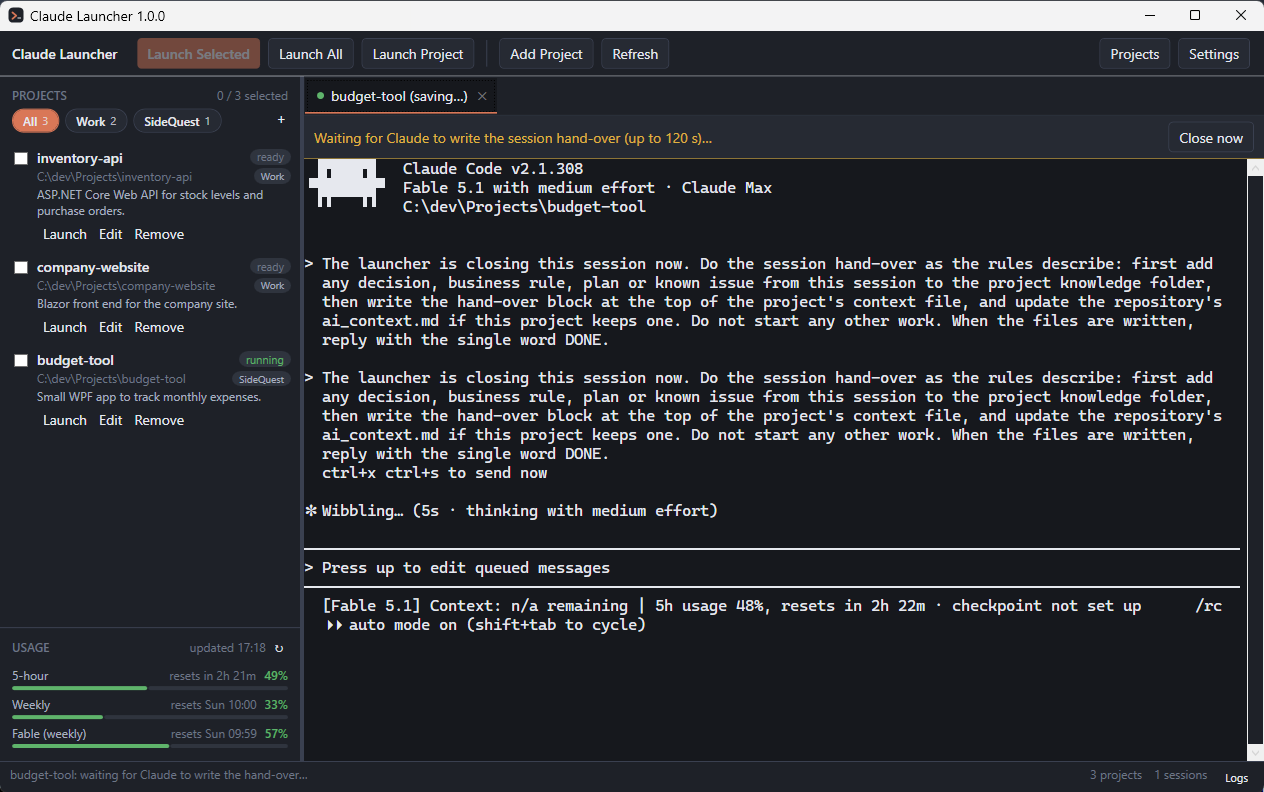
The launcher cannot know when Claude has finished, so it watches the files. Once one of them has changed and stayed quiet for a few seconds, it sends /exit, and when Claude ends, the tab closes. If nothing happens within 120 seconds the session is closed anyway. Close now skips the wait.
Closing the whole launcher does the same thing in every tab at once, and the window closes when they have all finished. Both the wait time and the whole behaviour can be changed in Settings.
Step 7 – Recover After a Crash
Every launch passes a session id to Claude Code, and the launcher records the open conversations. A normal exit clears that record. If the launcher ends without closing its tabs, because of a crash, Task Manager or a power loss, the next start shows a status line saying that launching the affected project will resume the conversation that was open. Click Launch on that row, and the earlier conversation comes back, including the last messages.
Only conversations whose transcript still exists are offered, and entries older than seven days are dropped. You can turn this off in Settings.
Settings and the Skills Viewer
The Settings button opens two tabs.
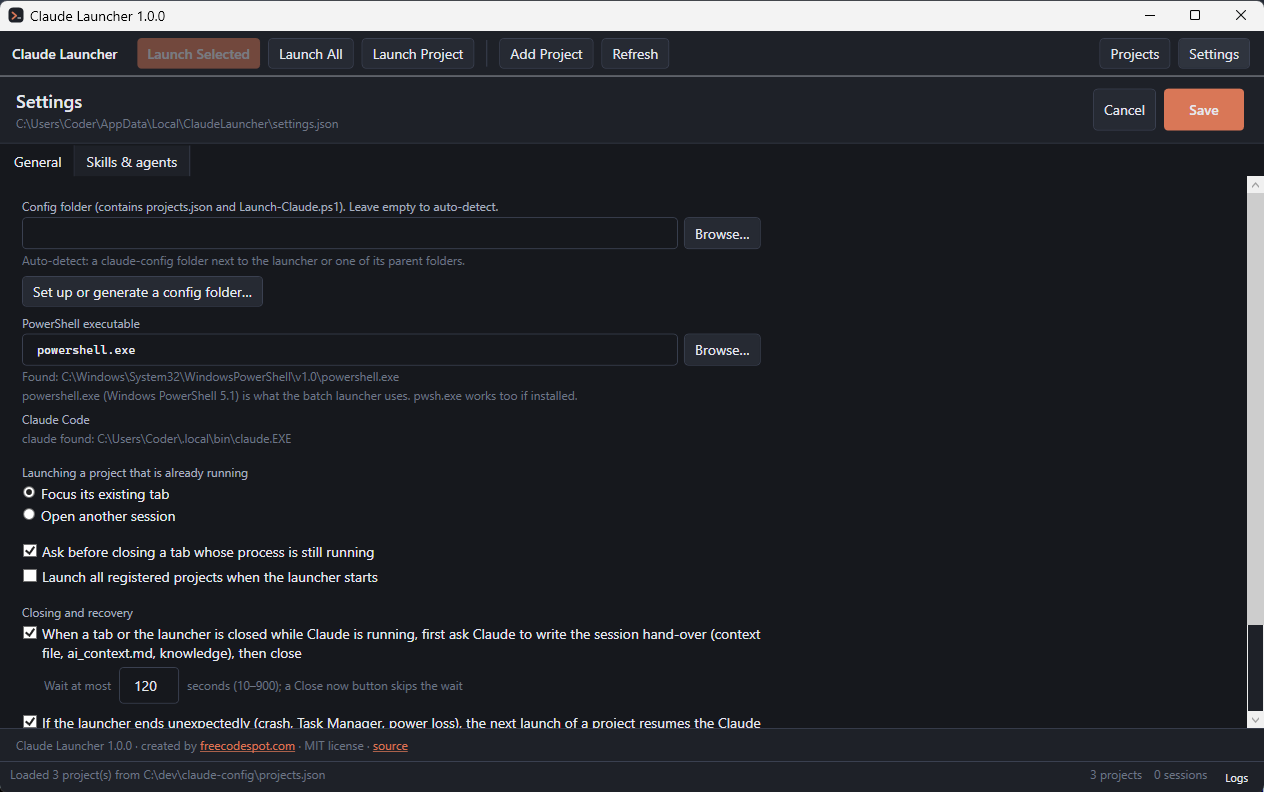
General holds the config folder, the PowerShell executable, what to do when you launch a project that is already running, whether to ask before closing a running tab, whether to launch everything at start, the hand-over and crash-recovery options, and the terminal font.
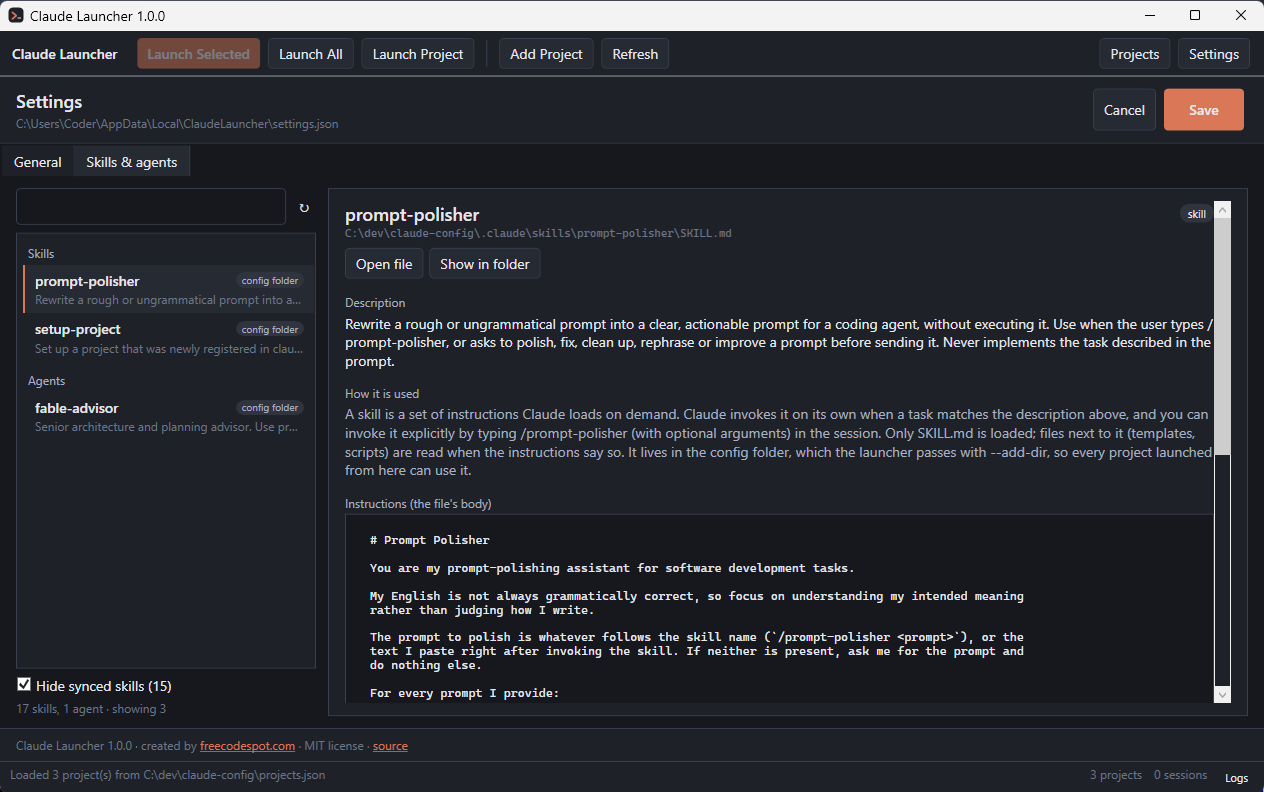
Skills & agents lists every skill and agent Claude Code can use from the launcher. Select one to see its description, a plain-language note on how Claude picks it and how to invoke it by name, and the full instructions. Open file opens it in your editor. The tab is read-only. Most entries under "user" are Anthropic's bundled skills, which Claude Code downloads itself; Hide synced skills leaves only the ones you wrote.
Where the Files Are
Claude Launcher does not install anything and does not touch the Claude Code installation. It reads Claude Code's data for the usage panel and for crash recovery, but never writes to it.
| Location | What it is for |
|---|---|
<workspace>\claude-config\ | The project list (projects.json), the shared rules (CLAUDE.md), the start script, one rules file per project under project-config\, hand-over files under context\, notes under knowledge\, and the skills in .claude\. |
%LOCALAPPDATA%\ClaudeLauncher\settings.json | The launcher's own settings. Use the Settings page instead of editing it. |
%LOCALAPPDATA%\ClaudeLauncher\logs\ | One log file per day. The Logs button in the status bar opens the folder. |
%LOCALAPPDATA%\ClaudeLauncher\sessions.json | The record of open conversations used for crash recovery. |
The usage panel calls the same endpoint that Claude Code's /usage command reads, using the token Claude Code keeps in your profile. The token is read into memory for the request only. It is never logged, stored or sent anywhere else.
Limitations
- Windows only, 64-bit only. It uses ConPTY, so Windows 10 1809 is the minimum.
- Sessions end when the launcher closes. The pseudo console dies with the process. After a crash the launcher resumes the conversation itself; after a normal exit,
claude --resumein a new tab picks up where you left off. - The terminal area is a native child window, so nothing can be drawn over it. The banners sit above it instead.
- The exe is not code-signed, which is why SmartScreen shows the warning on the first run.
- "Portable" means a single file to copy, not a zero-footprint app. Settings and logs still go to
%LOCALAPPDATA%\ClaudeLauncher\.
Troubleshooting
| What you see | What to do |
|---|---|
| No config folder found at start | Put the exe next to a claude-config folder, or click Set up… and choose or generate one. |
| A row shows missing and Launch is disabled | The folder no longer exists at that path. Click Edit, fix Project folder, save. |
| The claude command was not found | Install Claude Code, or add its folder (usually %USERPROFILE%\.local\bin) to PATH. Then click Refresh and launch again. |
| The tab turns yellow (shell) right after launch | Claude Code exited at once. Read the message above the prompt in that tab, usually a login or CLI problem, then click ↻. |
| failed: Could not start the terminal process | The PowerShell path in Settings is wrong, or the project folder vanished. Fix it and click Retry in the banner. |
| A project disappeared from the sidebar | A workspace chip is selected. Click All. |
| The hand-over banner stays for a long time | Claude is still writing, or is waiting for an answer in the terminal. Answer it there, or click Close now. |
| Odd characters at the prompt after Claude ended abruptly | Type cls in that tab. |
| Ctrl+C does not copy | Plain Ctrl+C goes to the shell. Use Ctrl+Shift+C or Ctrl+Insert. |
| The usage panel reads token missing or expired | Run Claude Code once in any tab. The panel refreshes within a minute. |
If something else goes wrong, open an issue on the releases repository and attach the newest file from the log folder. The logs record start and exit codes, never terminal content.
Download
Claude Launcher is free and released under the MIT license. The downloads are on GitHub.
You can find this and every other application from FreeCodeSpot on the Applications page.
Summary
In this article, I released Claude Launcher, a free Windows app that runs Claude Code projects from one window, with one terminal tab per project, workspaces, a usage panel, a session hand-over on close, and crash recovery. We downloaded it, generated the config folder, added a project, launched it, and closed it with the hand-over.
